Better Canvas Extension: Setup, Features, Grades, and Safety
Quick Verdict: Should You Use Better Canvas?
The Better Canvas extension is useful if Canvas LMS is your daily school hub and you want a cleaner dashboard, dark mode, better to-do visibility, dashboard grades, and a GPA or what-if grade view. It is not a replacement for Canvas itself, and it should not be installed blindly on a managed school device.
Best fit: students who use Canvas several times a week, track many due dates, or want a more readable dashboard.
Use caution if: your school blocks browser extensions, you share a device, or you are uncomfortable granting an extension access to your Canvas pages.
Verified on June 26, 2026: the official Better Canvas GitHub repository describes support for Chrome and Firefox. I do not recommend following Safari-specific installation advice unless the project publishes an official Safari build.
What the Better Canvas Extension Actually Does
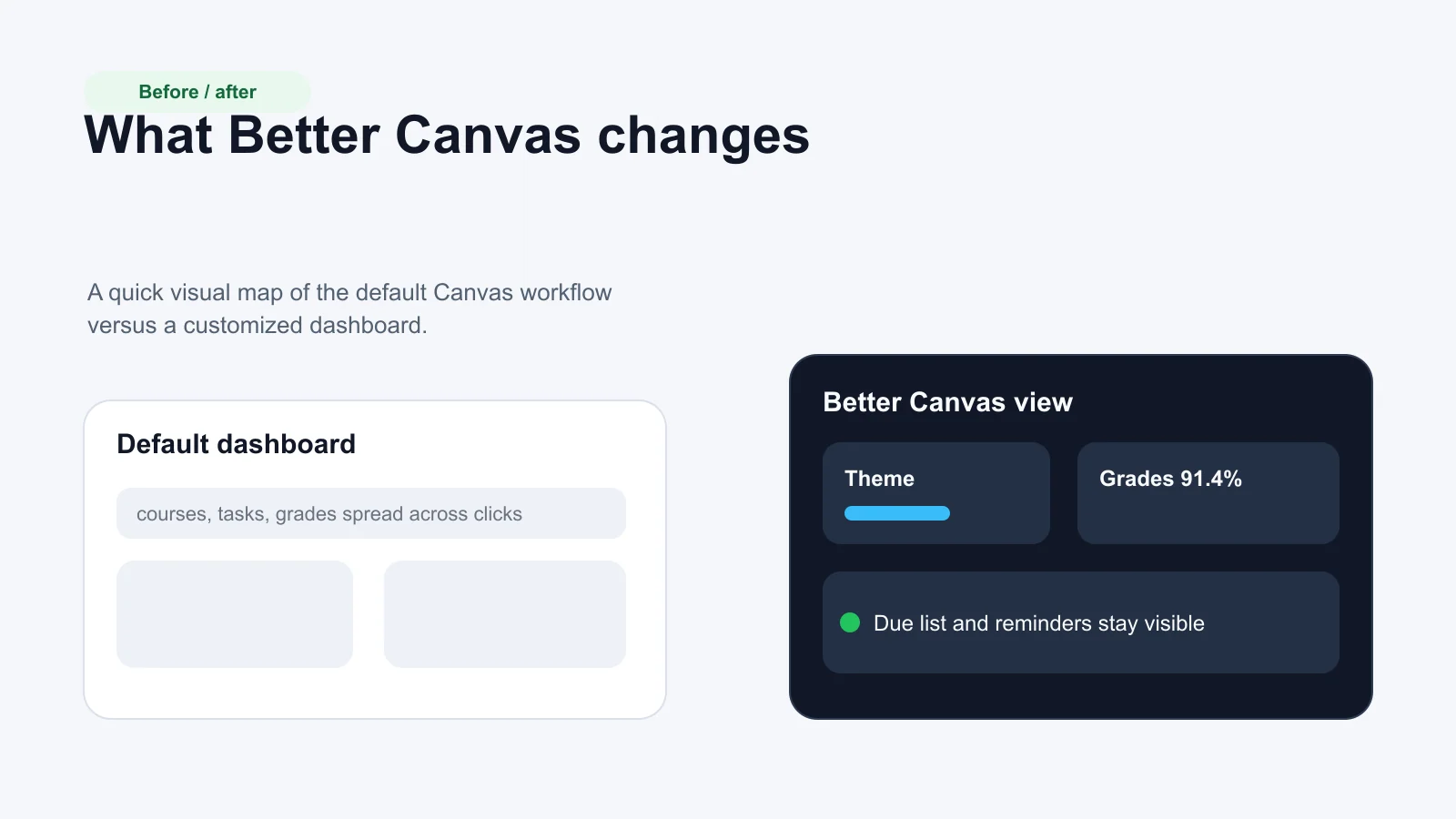
Better Canvas is a browser extension that changes the way Canvas looks and behaves in your browser. According to the project README, its feature set includes customizable dark mode, dashboard card color palettes, user-created themes, assignment due lists, dashboard notes, custom fonts, condensed cards, dashboard grades, a GPA calculator, popup assignment reminders, and previews for assignments and announcements.
That combination matters because Canvas already contains your courses, grades, announcements, and deadlines, but the default interface can still feel spread out. Better Canvas tries to make the high-frequency student tasks easier to scan:
| Need | Better Canvas feature to check first | Why it helps |
|---|---|---|
| Late-night reading | Dark mode and theme controls | Reduces glare and creates a consistent study view |
| Many course cards | Card colors, custom images, condensed cards | Makes courses easier to distinguish quickly |
| Missed deadlines | Better to-do list and assignments due list | Keeps due work visible on the dashboard |
| Grade planning | Dashboard grades and GPA calculator | Shows standing and what-if scenarios faster |
| Course updates | Assignment and announcement previews | Reduces click depth for common checks |
The biggest practical benefit is not decoration. It is reducing the number of small Canvas checks that interrupt your study flow.
Browser Support and Installation
As of this review, Better Canvas provides public install links for Chrome and Firefox. If you see a download on a random mirror site, skip it. Browser extensions can read and change data on websites they are allowed to access, so the source matters.
Install Better Canvas on Chrome
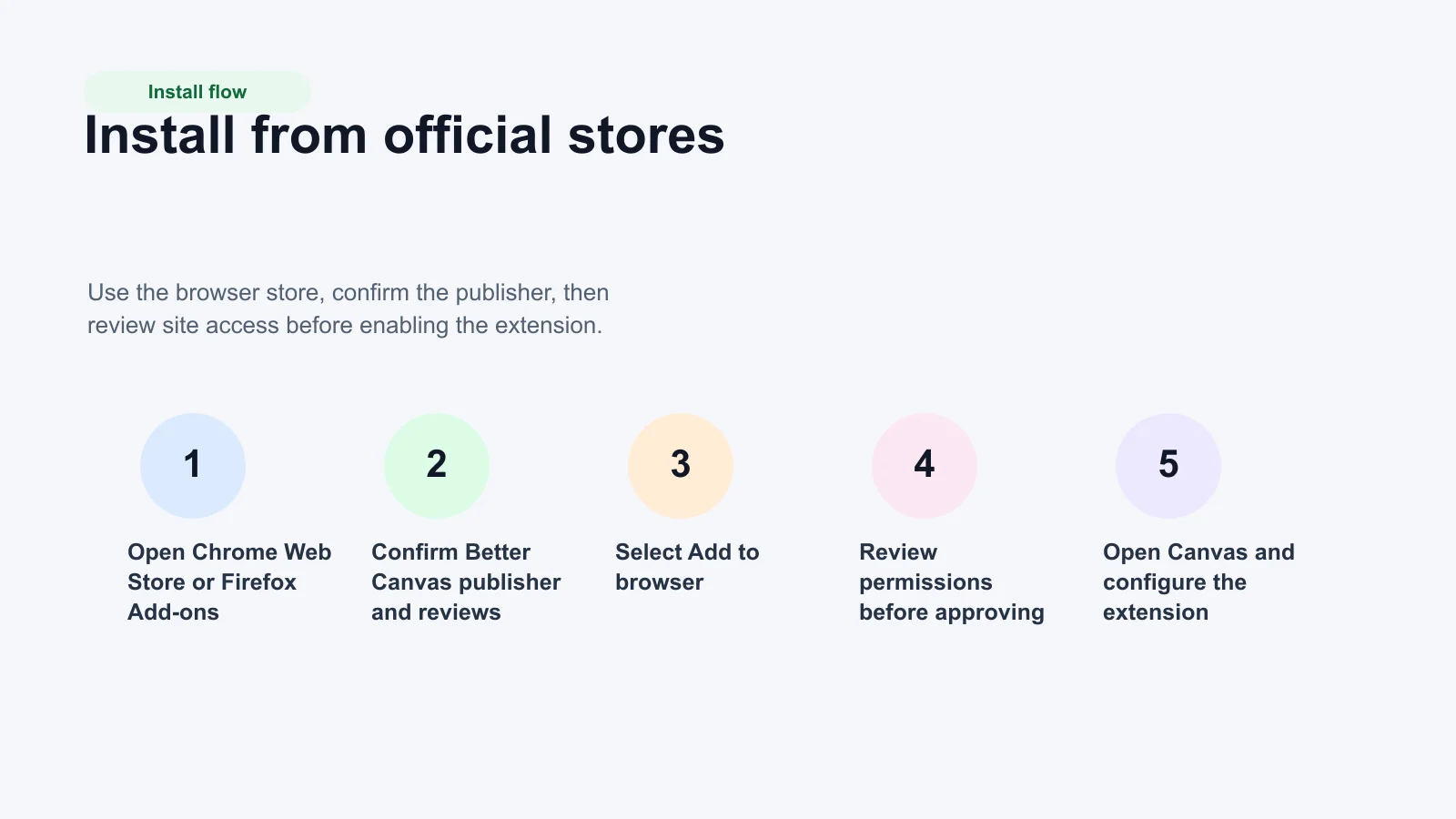
- Open the official Better Canvas listing in the Chrome Web Store.
- Select Add to Chrome.
- Read the permissions prompt before selecting Add extension.
- Open your institution's Canvas homepage.
- Select the Extensions icon near the Chrome address bar, then choose Better Canvas.
- Configure only the options you need first: dark mode, dashboard cards, due list, or grades.
Google's Chrome Web Store Help reminds users that extensions cannot be added in Incognito or Guest mode, and that some work or school computers may block extensions. Chrome also lets you manage an extension's site access after installation, which is useful if you want access limited to Canvas rather than every site.
Install Better Canvas on Firefox
- Open the Better Canvas listing on Firefox Add-ons.
- Select Add to Firefox.
- Review the permissions prompt.
- Open Canvas and use the extension menu to configure dashboard and theme options.
If your school uses locked-down browsers, ask IT whether Better Canvas is allowed before sideloading anything. A blocked extension is usually an administrative policy, not a bug in Better Canvas.
What About Safari?
Safari extensions are distributed through the Mac App Store and enabled from Safari settings. Apple's Safari extension guidance is useful if you are evaluating browser extensions generally, but the Better Canvas project currently lists Chrome and Firefox as supported. Safari users should treat any unofficial Safari package as unverified unless the Better Canvas maintainers publish and link it themselves.
Feature Review: What to Turn On First
The extension has enough options that it is easy to over-customize. Start with the features that solve a real Canvas pain point, then add visual themes after the workflow feels stable.
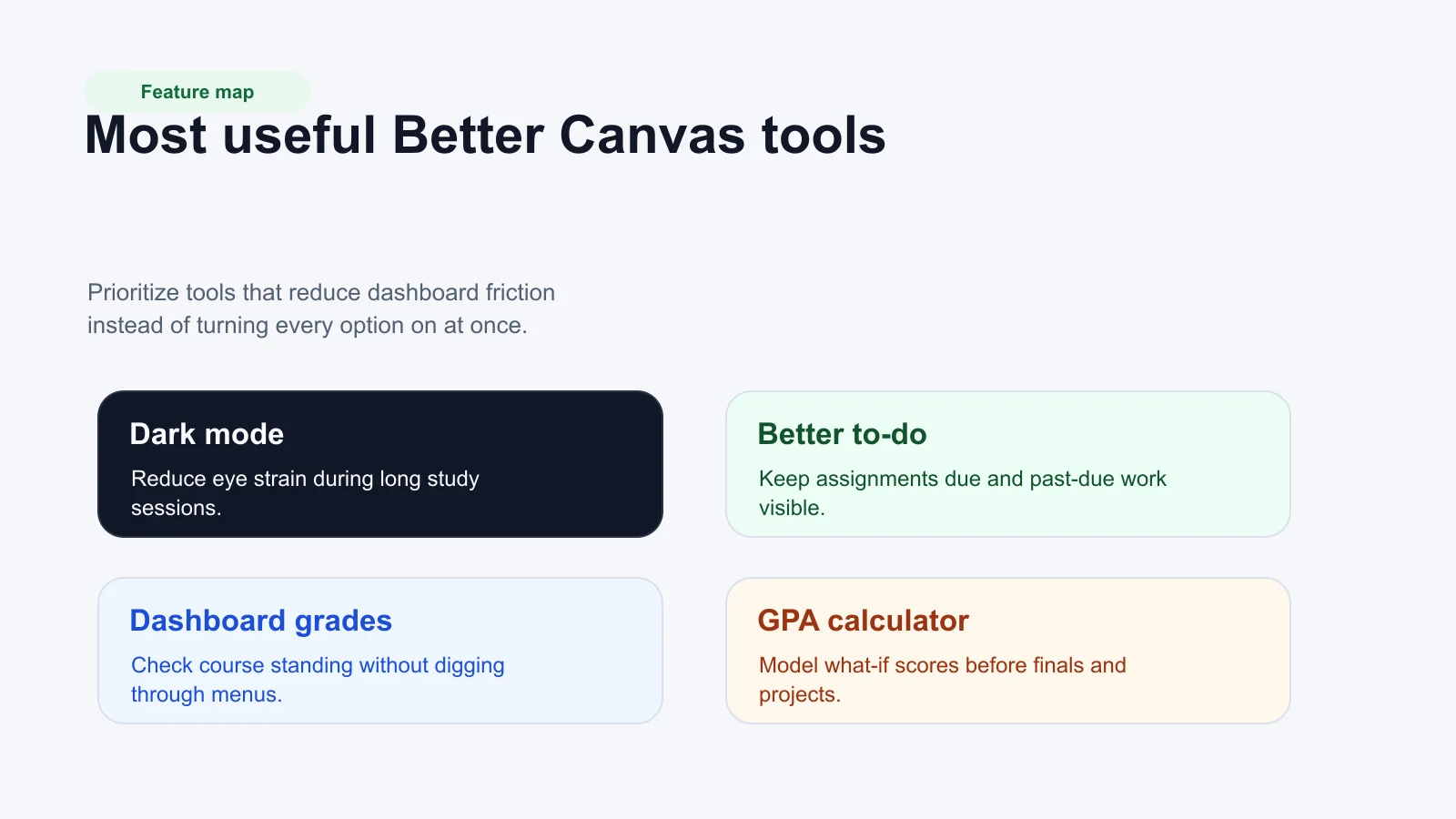
1. Dark Mode and Readability
Dark mode is one of the safest first settings to test. It can make late-night reading easier and helps students who prefer lower contrast glare. After turning it on, check pages that contain discussion posts, rubrics, embedded documents, and quizzes. Some Canvas pages include instructor-provided formatting, so you want to confirm that text, links, tables, and buttons remain readable.
A good setup rule is simple: if a theme makes your dashboard look better but makes course content harder to read, do not use that theme for daily work.
2. Better To-Do List and Assignment Visibility
The better to-do list is valuable when Canvas becomes your command center. Use it to keep current and past-due work visible, then pair it with a planning habit outside Canvas. For example, you can review the Better Canvas due list each morning and move the important items into the AFFiNE Student Planner Template or an assignment tracker workflow.
This keeps Canvas as the source of course updates while giving you a separate place to plan the work.
3. Dashboard Grades and GPA Calculator
Dashboard grades and the GPA calculator are helpful for quick checks, especially before finals or large projects. Treat them as planning aids, not official transcripts. Canvas grade views can depend on how each instructor weights assignments, drops scores, handles extra credit, or hides unpublished grades.
Use the what-if calculator to answer planning questions such as:
- What score do I need on the final to keep an A?
- Which class needs the most study time this week?
- Does one missing assignment matter more than two smaller quizzes?
If the result affects a major decision, compare it with the official course gradebook or ask the instructor.
4. Assignment and Announcement Previews
Previews reduce click depth. They are useful when you only need to check whether an announcement changes a deadline or whether an assignment contains a file, rubric, or link. If you regularly miss updates because they sit behind several Canvas clicks, this is one of the most practical features to enable.
5. Popup Assignment Reminders
Browser-wide reminders can help if you keep Canvas open while studying. They can also become noise. Start with reminders for high-stakes assignments only, then expand if they are genuinely useful.
Theme Customization and Accessibility
Theme customization is the visible part of Better Canvas, but it should serve readability. The best theme is not the flashiest one; it is the one that lets you identify courses, read instructions, and scan due dates with less effort.
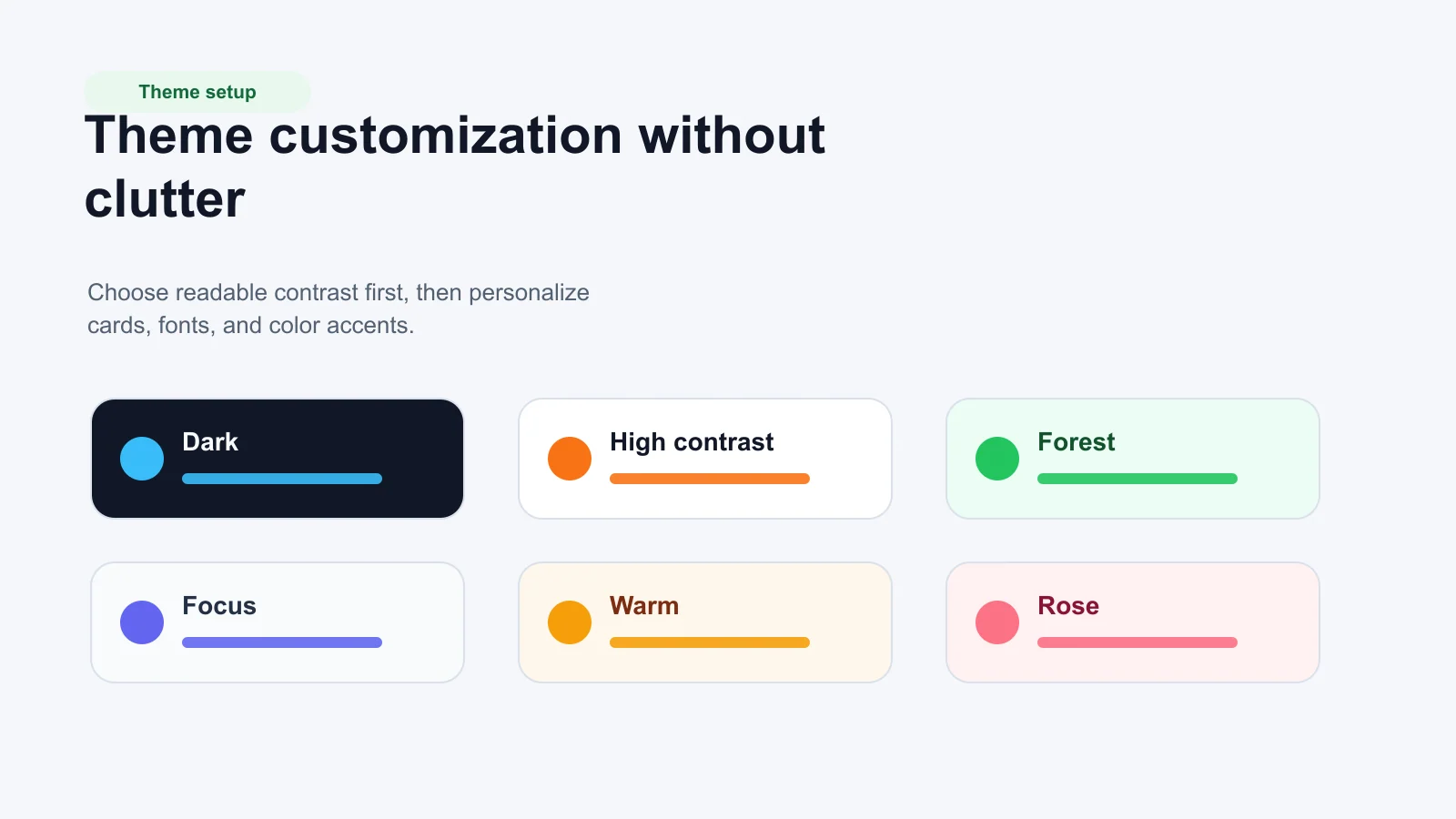
Use this order when customizing:
- Contrast: Confirm text remains readable in course cards, assignments, discussions, and grade tables.
- Course recognition: Use colors or card images to distinguish courses quickly.
- Font choice: Choose a font that is comfortable for long reading, not just visually interesting.
- Layout density: Condensed cards help if you manage many courses, but they should not hide important dates.
- Theme sharing: Only import themes from sources you trust. A theme should not require you to install a separate extension or run unknown code.
A theme is successful when you forget about it because Canvas feels easier to use.
Security and Privacy Checklist
Any extension that changes Canvas needs careful review because Canvas may contain grades, course materials, names, messages, and school-specific links. The safest approach is to install from official stores, review requested permissions, and limit site access where your browser allows it.
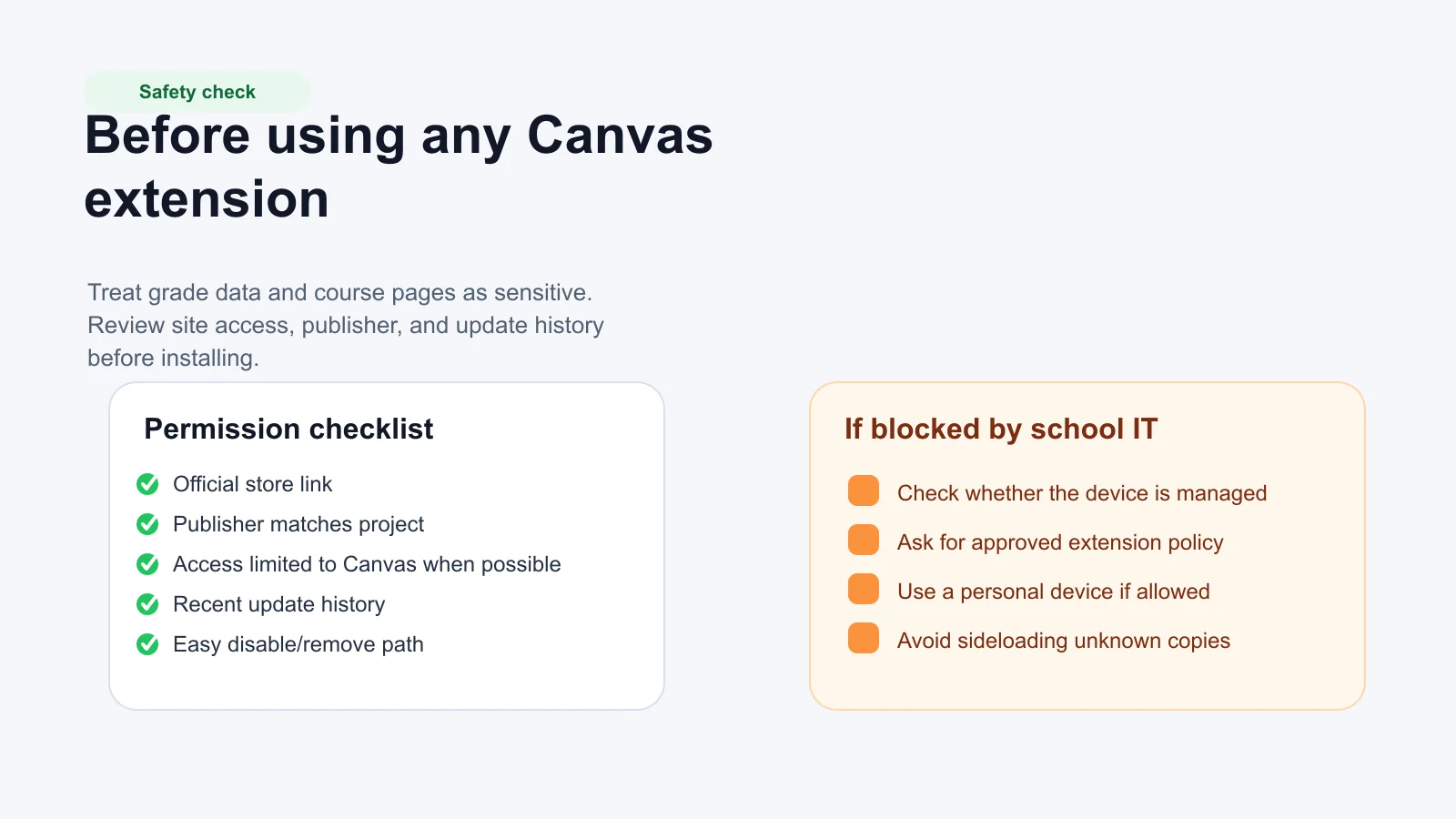
Before you approve Better Canvas, check:
- Source: Use the Chrome Web Store, Firefox Add-ons, or the official project links.
- Publisher: Confirm the listing matches the Better Canvas project you intended to install.
- Permissions: Read what data the extension can access. If the browser lets you restrict site access to your Canvas domain, consider doing that.
- Update history: Prefer an actively maintained extension, especially because Canvas and browsers change often.
- School policy: Managed school devices may block extensions for compliance reasons.
- Removal path: Know how to disable or remove the extension before you rely on it.
Do not enter passwords into any popup that is not part of your school's official sign-in flow. A Canvas enhancement extension should modify the interface after you are already on Canvas; it should not ask you to hand over login credentials.
Troubleshooting Common Problems
If Better Canvas does not appear to work after installation, work through the simple checks first:
| Problem | Likely cause | Fix |
|---|---|---|
| Extension icon is missing | It is hidden from the toolbar | Open the browser Extensions menu and pin it |
| Canvas looks unchanged | Extension is disabled or lacks site access | Enable it and allow access to your Canvas domain |
| Install button is blocked | Managed school browser or device policy | Ask school IT or use a personal device if permitted |
| Theme breaks text contrast | Theme conflict with Canvas content | Switch to a simpler theme or default colors |
| Grades look wrong | Canvas course weighting or unpublished grades | Compare with the official gradebook |
| Another Canvas extension conflicts | Two extensions modify the same page | Disable other Canvas extensions and retest |
Avoid downloading a copied extension package from social media comments or file-sharing links. If official installation is blocked, the right next step is policy clarification, not sideloading an unknown copy.
How Better Canvas Fits With AFFiNE Planning
Better Canvas improves the place where course updates appear. AFFiNE is better for the planning layer around those updates: weekly goals, exam prep, personal notes, and recurring study routines. A practical workflow looks like this:
- Open Canvas and scan Better Canvas for due work, grade changes, and announcements.
- Move the highest-priority work into the AFFiNE Student Planner Template.
- Break large assignments into checkpoints in AFFiNE.
- Use a personal productivity dashboard to review weekly progress.
- Re-check Canvas when instructors update grades, files, or deadlines.
That separation keeps Canvas as the official course system and AFFiNE as your personal study operating system.
Final Recommendation
Use Better Canvas if you want Canvas to feel less cluttered and you are comfortable reviewing browser extension permissions. Start with dark mode, better to-do visibility, and dashboard grades. Add themes only after confirming they improve readability.
Do not use it as your only grade authority, and do not bypass school extension policies. The extension is most valuable when it helps you notice what matters faster, then move that work into a planner where you can act on it.
Frequently Asked Questions about Better Canvas Extension
1. What is the Better Canvas extension?
Better Canvas is a browser extension that customizes Canvas LMS with features such as dark mode, themes, dashboard card controls, a better to-do list, dashboard grades, a GPA calculator, assignment reminders, and assignment or announcement previews.
2. Is Better Canvas available for Safari?
The official Better Canvas repository currently lists Chrome and Firefox support. Safari users should not assume there is an official Safari version unless the Better Canvas maintainers publish one through a trusted channel such as the Mac App Store or their own official links.
3. Is Better Canvas safe to use with Canvas grades?
It can be reasonable to use when installed from official stores and configured carefully, but you should still review permissions, limit site access where possible, and treat dashboard grade calculations as planning aids. For official academic decisions, rely on Canvas gradebook data and instructor guidance.
4. Can professors see that I use Better Canvas?
Better Canvas changes the Canvas interface in your browser. In normal use, instructors do not need to see your local theme or dashboard customization. However, school-managed devices and browsers may enforce extension policies, so follow your institution's rules.
5. What should I do if Better Canvas is blocked by my school?
Do not sideload a random copy. First check whether the device or browser is managed, then ask school IT whether Better Canvas or similar Canvas customization extensions are allowed. If policy permits, use a personal device and install only from official sources.
6. How should I use Better Canvas with AFFiNE?
Use Better Canvas to surface Canvas deadlines, grade changes, and announcements. Use AFFiNE to plan the work: weekly study goals, assignment checkpoints, notes, and exam preparation. The AFFiNE Student Planner Template is the best starting point.