6 Best One-Pager Examples & Templates for 2026 (Tested)
Last updated: June 26, 2026 · Editorially reviewed across sales pitch, startup fundraising, product launch, project status, and team alignment use cases.
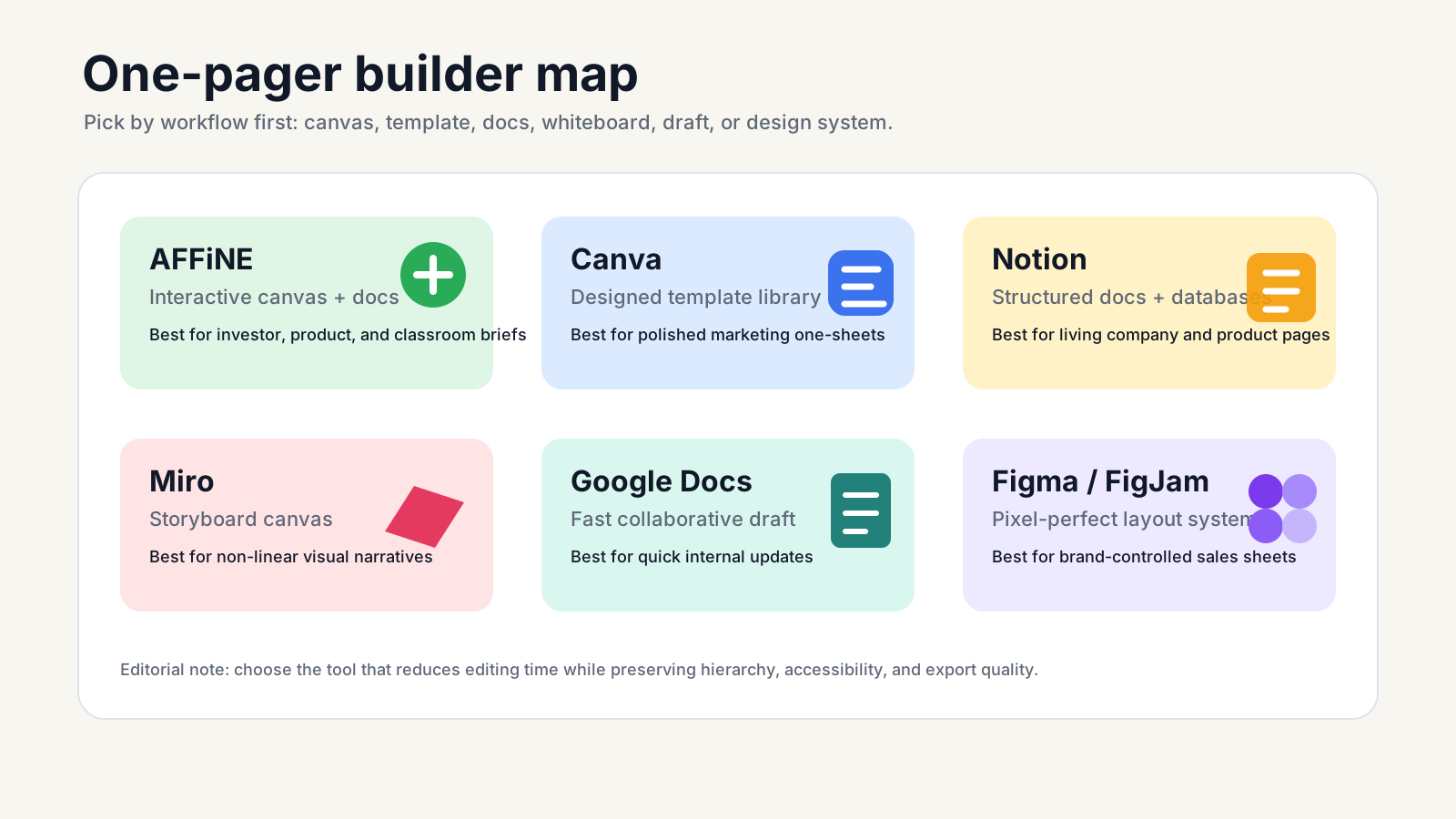
Quick answer: A one-pager is a single-page brief that explains one offer, project, or idea clearly enough for a stakeholder to understand the value and next step in under three minutes. For most teams in 2026, the strongest one-pager builders are AFFiNE for interactive canvas-plus-doc briefs, Canva for design-led templates, and Notion for structured company or product overviews.
The 2026 pick by use case:
• Best for interactive pitches: AFFiNE — hybrid docs + canvas, free one-pager templates, and local-first privacy. • Best for visual design: Canva — drag-and-drop templates, brand kit controls, and fast PDF export. • Best for company / product overviews: Notion — structured docs with embedded databases and live links. • Best for whiteboard-style narratives: Miro — infinite canvas, storyboard layouts, and live cursors. • Best for fast collaborative drafts: Google Docs — browser-only editing, real-time comments, and near-zero learning curve. • Best for pixel-perfect design: Figma / FigJam — vector control, reusable components, and designer-team workflows.
A one-pager works when it leads with a single value proposition, supports it with one proof metric, and ends with a decisive call to action. This guide compares six platforms on layout control, collaboration, export fidelity, accessibility, and best-fit use cases. You will see how the top one-pager examples are structured, where each platform breaks down, and which one to pick for your specific pitch.
What is a One-Pager and Why It Works in 2026
What is a one-pager?
At its core, a one pager is a single-page, skimmable document that distills complex information into a format anyone can understand at a glance. Think of it as your elevator pitch on paper: it prioritizes hierarchy, clarity, and a singular call to action. Whether you’re pitching a product, summarizing a project, or aligning teams, the best one pager examples use a blend of concise copy and simple visuals to deliver maximum impact with minimal clutter. You’ll notice these documents often serve as executive summaries, project snapshots, or quick-reference guides for busy stakeholders. Before expanding that message to a full page, test its spoken core with a concise pitch framework.
What makes an effective one pager
• Purpose-first headline: Instantly signals the topic and value.
• 1–3 value pillars: Short, benefit-driven statements that answer “why care?”
• One metric or proof point: A single, standout statistic or testimonial builds trust.
• Simple visual: A diagram, chart, or branded image that breaks up text and guides the eye.
• Decisive CTA: A clear next step—contact, download, sign up, or learn more.
Strong one-pager examples repeat these elements because they make the message easier to retell. Arrange your content top-to-bottom, left-to-right, and use clear section headers for easy navigation.
Common pitfalls to avoid
• Overloading with text—brevity is your friend.
• Ignoring visual hierarchy—make headlines and CTAs pop.
• Neglecting accessibility—ensure color contrast (WCAG 2.1), readable font sizes, and plain language (U-M Accessibility).
• Forgetting the audience—tailor tone and details to their needs.
• Skipping the proof—always add a metric or testimonial.
“If a stakeholder can’t explain your offer in one sentence after 30 seconds, revise.”
How to use this list
To get the most from the one pager ideas and templates ahead, follow this quick workflow:
• Define your audience: Who needs to act on this information?
• Select a template: Choose a layout that matches your purpose.
• Trim copy to essentials: Cut jargon and keep sentences short.
• Add proof: Insert a key metric, testimonial, or visual cue.
• Run clarity checks: Read aloud and ask, “Would a new reader get this in 30 seconds?”
• Export to share: Save as PDF or image—test print to ensure spacing and type scale hold up.
Every product section in this guide breaks down why the example works, the tradeoffs, and the best-fit use cases, so you can scan and choose quickly. As you build, keep margins generous, use a simple grid, and test the exported PDF or image before sharing. If your one-pager also needs a support-ready question set, use these FAQ templates, checklists, and examples.
How we curated and scored the one pager examples
When you’re searching for one pager examples that will actually help you convert, it’s easy to feel overwhelmed by the sheer number of templates and formats out there. So, how do you know which ones are worth your time? Behind every example in this guide is a transparent, repeatable review process—so you can trust that each pick is both practical and adaptable for real-world needs.
Evaluation Criteria
For a new project, product, or classroom assignment, a useful one-pager template must make the audience, value, proof, and next step obvious. We weighted each tool by practical use rather than feature count.
| Criterion | What we checked | Why it matters |
|---|---|---|
| Message clarity | Can the template explain the audience, value, proof, and next step on one page? | A one-pager fails if the reader cannot retell the point quickly. |
| Layout control | Can you adjust hierarchy, spacing, columns, and type scale without breaking the design? | Good layouts survive edits, localization, and export. |
| Collaboration | Can teammates comment, update, and approve without version confusion? | Most one-pagers move through review before they ship. |
| Export fidelity | Do PDF, PNG, or share links preserve spacing, images, and readability? | Many one-pagers are sent as leave-behinds or printed handouts. |
| Accessibility | Can you add useful alt text, maintain contrast, and keep reading order clear? | Accessible documents are easier for everyone to scan and reuse. |
Here’s the checklist we used for our one pager analysis:
• Template depth and variety: Does the tool offer a range of one pager formats for different use cases?
• Layout controls: Can you easily adjust grids, spacing, and type scale to match your brand?
• Collaboration and comments: Is it simple to gather feedback from teammates or stakeholders?
• Export quality: Are PDF and PNG exports crisp, accessible, and print-ready?
• Accessibility options: Are color palettes contrast-friendly? Can you add alt text for visuals? Does the tool support WCAG guidelines for clarity and readability? (AccessibilityChecker.org)
• Ease of onboarding: How quickly can a new user start creating a one pager?
• Documentation: Are there clear guides or help docs to support different one pager outline needs?
Review workflow
The review workflow is simple enough to reuse when you create a one pager or evaluate a new tool:
-
Shortlist well-known tools and template libraries based on popularity and user reviews.
-
Review the range of one pager formats and example galleries available in each tool.
-
Build at least one sample one pager per tool to test real-world usability.
-
Assess edit speed and layout fidelity—does the design hold up as you tweak content?
-
Verify export and print results (PDF, PNG, etc.) for clarity and accessibility.
-
Check versioning and sharing flows to see how easy it is to collaborate and distribute.
Throughout this workflow, we paid special attention to how each platform balanced flexibility with structure. This is an editorial review, not a sponsored ranking: tools are recommended only when their workflow matches the use case. The goal is to minimize time spent fighting formatting so you can focus on your message. If you’re curious about how to create a one pager that stands out, use this workflow as your starting point.
Quality and accessibility checks
Creating a one pager isn’t just about aesthetics—it’s about making sure every reader can access and understand your message. That’s why accessibility was a key part of our review. We checked for:
• High-contrast color palettes and readable font sizes
• Logical reading order and clear section headings
• Alt text for all images and diagrams
• Support for screen readers and keyboard navigation
• Exported files that retain structure and clarity in both digital and print formats
We also looked for tools that made it easy to follow best practices for plain language and scannability, drawing on recommendations from experts like the Nielsen Norman Group and Stephanie Evergreen. This ensures your one pager outline is accessible to everyone—not just design pros.
Choose the tool that minimizes formatting fight while preserving hierarchy.
Every example in this list includes a why-it-works annotation, so you can immediately reuse proven patterns—whether you’re focused on business, product, or education contexts. Next, we’ll dive into specific tools and templates that rose to the top, showing you exactly how these criteria play out in practice.
AFFiNE one pager templates and visual workspace
AFFiNE is strongest when you need a polished one-pager that moves from messy planning to shareable brief without changing tools. AFFiNE combines structured docs, an infinite canvas, and AI-assisted drafting in one workspace. That makes its free one pager templates a top pick for business, education, and product teams alike.
Why this one pager example works
AFFiNE’s platform lets you lay out bold headlines, crisp visuals, and concise value pillars—all on a single page that’s easy to scan and even easier to share. The hybrid canvas-plus-docs model means you can brainstorm on an infinite whiteboard, then drop in structured content blocks for clarity. Want to adapt a product one pager into a project summary or classroom brief? Just swap out sections, rearrange visuals, and keep your layout intact—no reflow issues, no lost formatting.
Plus, with local-first privacy, you can work on sensitive drafts without worrying about leaks or data loss. AI mind mapping and content suggestions help you ideate faster, making it easier to move from raw notes to a polished one-pager draft. For teams that need both creative planning and structured export, AFFiNE is the most practical option in this comparison.
Pros and cons
Pros
• Hybrid workspace: combine canvas (for diagrams, mind maps) with docs (for structured copy).
• Rich library of free one pager templates, including product launches, investor overviews, and classroom assignments.
• AI to create a one pager with mind mapping, auto-layout, and smart content suggestions.
• Local-first privacy keeps your drafts secure until you’re ready to share.
• Flexible editing: adapt copy blocks and swap visuals without layout headaches.
Cons
• Requires brief onboarding to use both canvas and doc features effectively.
• Some advanced design tweaks may need a learning curve for new users.
Best use cases
• Investor overview one pagers
• Product feature sheets (see product one pager examples in the template gallery)
• Classroom assignments or lesson summaries
• Internal project briefs for cross-functional teams
Teams can easily adapt a 1 pager template for any scenario—just update the content blocks and visuals to fit your audience and goal.
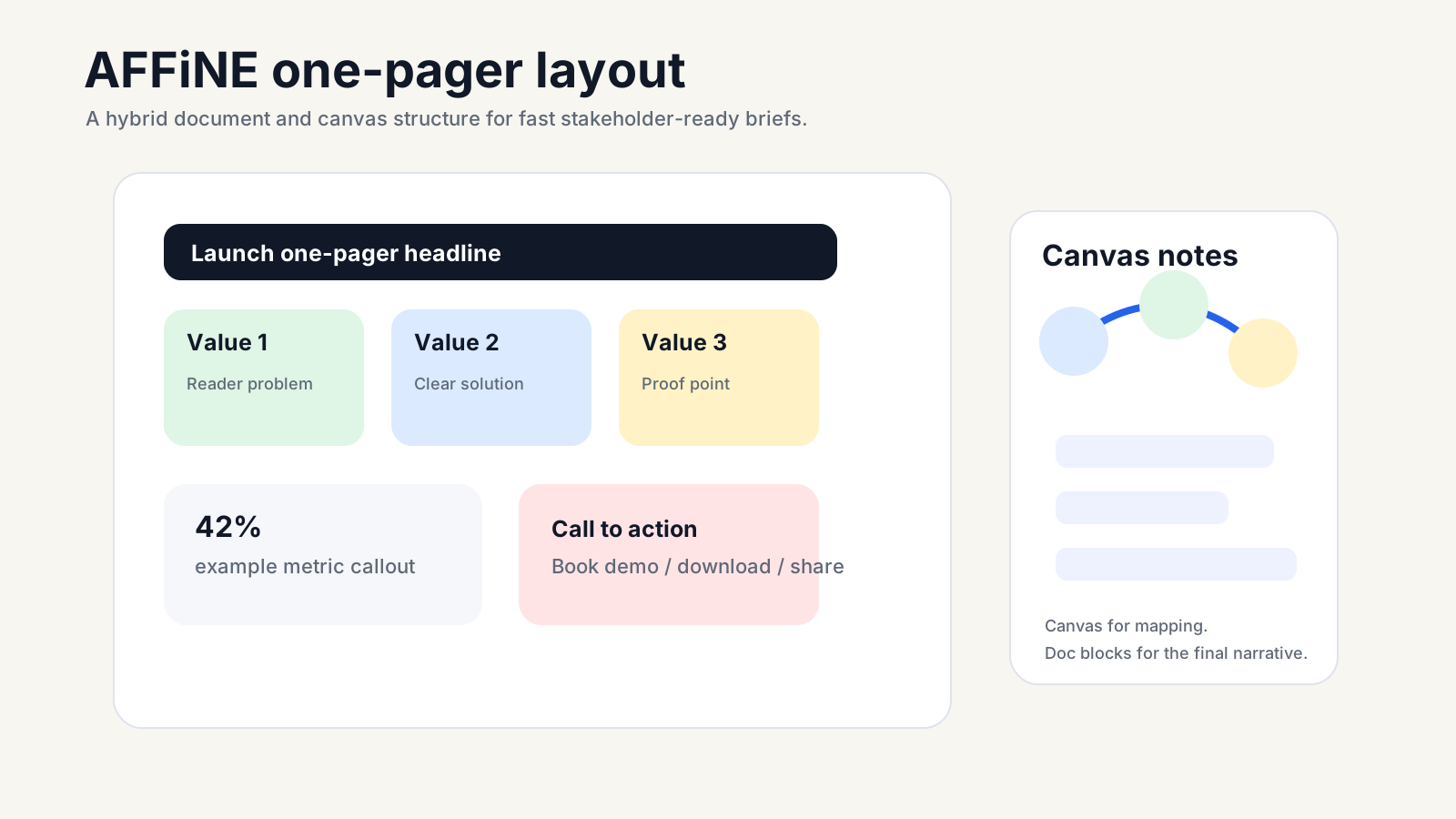
Starter layout
Not sure where to start? Try this proven grid:
• Headline: Bold, purpose-driven statement at the top
• Three-column value block: Short, benefit-focused bullets or icons
• Metric callout: Single, eye-catching proof point (statistic, testimonial, or chart)
• Bottom CTA: Clear, actionable next step (e.g., “Contact us,” “Download now”)
This format works for everything from product one pager launches to classroom overviews—and you can preview dozens of variations in AFFiNE’s 1 pager templates gallery.
For anyone seeking a customizable, privacy-friendly workspace that eliminates reflow headaches, AFFiNE is the practical next step. Use the template gallery to compare more one-pager formats before choosing a final layout.
Designing Impactful One Pagers with Canva’s Templates and Tools
Canva is useful when the visual standard is high and the team does not want to build a layout from scratch. Its one-pager maker starts from a library of modern, visually engaging templates that let you focus on your message, not the mechanics of design. But what makes Canva one pager templates so effective for marketers, educators, and business teams alike?
Why this one pager example works
For a marketing one-pager, Canva starts with structured designs such as strong hero headers, bold color blocks, and layouts that highlight the core value. The platform’s drag-and-drop interface makes it easy to add branded visuals, charts, or even a testimonial tile, ensuring your one pager canva project stands out and gets your point across in seconds.
Canva’s templates are built for clarity: they use hierarchy, white space, and visual cues to guide the reader’s eye from headline to call-to-action. This reduces information overload and makes your main message instantly skimmable. You’ll notice that even the most complex topics can be distilled into a single-page, actionable format—perfect for busy stakeholders who need to decide at a glance.
Pros and cons
Pros
• Extensive template library: Thousands of one pager templates for business, education, and nonprofit use cases.
• Brand Kits: Easily apply your company’s fonts, colors, and logos for on-brand consistency with every marketing one pager template.
• Quick export: Download as print-ready PDF, PNG, or share directly as a digital link.
• Collaboration tools: Invite team members to edit or comment in real time, even without a Canva account.
• AI-powered design and writing tools to jumpstart your draft or check for clarity.
Cons
• Advanced layout tweaks are more limited than in full desktop design software.
• Version control for teams requires careful management to avoid accidental overwrites.
• Some template elements may need manual adjustment for perfect print alignment.
Best use cases
• Marketing sell sheets and campaign overviews (start with a marketing one pager template for fast results)
• Event summaries or conference handouts
• Educator assignments or lesson summaries
• Internal project briefs or quick reference guides
Canva works well for marketers building campaign one-pagers and teachers summarizing lessons because the layout decisions are mostly prebuilt.
Starter layout
Not sure how to structure your one pager? Try this proven layout, inspired by Canva’s top-performing templates:
• Hero header: A bold, attention-grabbing title that states your main message or offer.
• Short subhead: One sentence that explains the value or context.
• Three benefit bullets: Use icons or short statements to highlight key advantages.
• Proof tile: Add a logo row, testimonial, or chart as a quick trust signal.
• Decisive CTA: End with a clear action step, such as “Contact us” or “Register now.”
For every image block, be sure to add descriptive alt text for accessibility. Before finalizing, test your print margins and use a line-height between 1.4 and 1.6 for optimal readability.
Favor high-contrast color pairs and 1.4–1.6 line-height for readability.
With Canva’s intuitive one pager maker, non-designers and marketers can create a professional one-pager without rebuilding layout rules. Next, we’ll look at how structured docs platforms enable even more collaboration and data consistency for company-wide briefs.
Notion company one pager and docs
Notion fits teams that need a living one-pager everyone can reference, update, and trust. Its strength is turning a company or product brief into a structured page with live context.
Why this one pager example works
For a leadership meeting or executive summary, the one-pager needs to stay concise, collaborative, and current. Notion’s workspace lets you combine rich text, inline databases, toggles, and templates on a single, skimmable page. This means your one pager doc is not just a static PDF; it can stay current as your project, product, or company metrics evolve.
With Notion, you can add linked databases for metrics, FAQs, or project milestones. This ensures that everyone sees the latest numbers and details, without hunting through multiple files. Templates for repeatable briefs make it easy to spin up a new company 1 pager or product one page with consistent structure, so every team—whether product, marketing, or operations—can align quickly.
Pros and cons
Pros
• Linked databases keep KPIs, FAQs, and resources up to date and in context.
• Templates for repeatable briefs reduce setup time and ensure consistency across teams.
• Real-time collaboration—edit, comment, and share instantly with stakeholders.
• Toggle blocks let you hide details, protecting scannability and keeping the focus on your core message.
• Easy export to PDF or sharing via link for both internal and external audiences.
Cons
• Pixel-perfect layout control is limited compared to dedicated design tools.
• Advanced print prep (like precise margin or font adjustments) may require extra effort.
• Some users may need onboarding to navigate databases and toggles efficiently.
Best use cases
• Company one pager: Executive summaries, investor updates, or strategic overviews that need to be updated regularly.
• Internal project briefs: Align teams on goals, milestones, and responsibilities with a single, collaborative document.
• Product one page: Summarize specs, value props, and KPIs for quick decision-making or stakeholder buy-in.
• Knowledge sharing: FAQs, onboarding guides, or resource lists for new team members.
Each of these scenarios benefits from Notion’s blend of structure and flexibility, making it easy to adapt your one pager doc for any audience or purpose.
Starter layout
For a company 1 pager in Notion, start with a simple, proven structure:
• Concise title: Make it clear what the page is about.
• One-sentence value prop: State your main benefit or goal right up top.
• Three bullets with bold labels: Highlight the key features, milestones, or differentiators.
• KPI callout as a toggled block: Let readers expand for details without cluttering the main view.
• CTA to full doc or roadmap: Link out for those who want to dive deeper.
Lock a concise summary at the top; push details behind toggles to protect scannability.
By following this structure, you’ll create a one pager document that’s easy for anyone to scan, reference, and update. And because Notion supports real-time collaboration, your team can keep the information fresh—no more outdated PDFs or scattered files. Next, let’s see how a visual-first approach can unlock even more creativity and clarity for complex one pagers.
Miro Infinite Canvas for Storyboard-Style One Pager Layouts
Ever tried to capture a complex process or big-picture idea on a single page, only to feel boxed in by rigid templates? That’s where Miro’s infinite canvas shines. With its visual-first approach, you’re not limited to static blocks or linear flows—you can design a one pager layout that truly matches your thinking, whether you’re mapping out a product launch, onboarding journey, or curriculum overview.
Why this one pager example works
Miro’s one-pager template is built for clarity and speed when stakeholders need different levels of context. Instead of crowding everything into tiny boxes, you can use sticky notes, flowcharts, and diagrams to visually organize every piece of information. The infinite canvas lets you group related ideas, highlight blockers, and show next steps—all in a single, skimmable view. This flexibility is especially useful when you want your one pager designs to evolve as your project does, or when you’re collaborating live with a team.
What sets Miro apart is its ability to combine narrative, data, and visuals without forcing you into a rigid structure. You can quickly adjust your one pager layout, add new sections, or expand with just a few clicks. This makes it ideal for teams who need to keep everyone aligned and focused on key objectives, while still leaving room for creative thinking and problem-solving.
Pros and cons
Pros
• Infinite canvas: Expand your ideas without worrying about running out of space.
• Sticky notes and flowcharts: Visually map out processes, blockers, and next steps.
• Real-time collaboration: Work with teammates live, no matter where they are.
• Customizable sections: Adapt your one pager layout ideas for any project or audience.
• Easy PDF export: Share a polished, print-ready version with stakeholders.
Cons
• Precise print alignment requires extra planning—always define a frame before exporting.
• Text styles and formatting need to be standardized for consistency.
• Overuse of color or icons can distract from hierarchy if not used carefully.
Best use cases
• Product explainer maps: Show how features connect, highlight value props, and outline next steps visually.
• Onboarding quick guides: Walk new hires or customers through a process with clear, step-by-step visuals.
• Curriculum snapshots: Summarize a course or unit, using columns for objectives, key concepts, and metrics.
• Process maps and storyboards: Lay out complex workflows or campaign plans in an intuitive, non-linear format.
These one pager ideas aesthetic are especially effective when you need to communicate big-picture thinking, show relationships, or make complex topics accessible at a glance.
Starter layout
Not sure how to structure your board? Try this storyboard-inspired format for your next one-pager template:
• Left column: Narrative headline and subhead—state the purpose and context.
• Center: Main diagram or flowchart—map out the core idea, process, or journey.
• Right column: Proof or metrics stack—use sticky notes or icons to highlight results, blockers, or next steps.
• Bottom: Decisive call to action—make the next step clear and actionable.
This layout keeps your content organized and makes it easy for viewers to scan from overview to details, then take action.
Constrain your design within a defined frame to ensure clean PDF export.
Before exporting, use Miro’s frame tool to select the exact area you want to share. This prevents awkward cropping and keeps your typographic scale and spacing intact when saving as a PDF. For best results, use color-coding and icons sparingly—this draws attention to what matters most, without overwhelming the reader.
With Miro, you can create one pager designs that adapt to any challenge, from brainstorming big ideas to sharing polished summaries. Up next, see how minimalist document tools can help you draft and share quick one pagers for fast-moving teams.
Google Docs Simple One Pager Layouts for Fast, Collaborative Teams
Google Docs fits teams that need a concise one-pager draft without opening a design tool. Its value is speed: writers can draft, reviewers can comment, and stakeholders can approve in a familiar browser document.
Why this one pager example works
For a project summary or internal sales update, Google Docs keeps the workflow simple: you open a blank page and start writing—no barriers, no distractions. The platform’s clean interface keeps your focus on content clarity, which is essential when you want your message to be understood in seconds. Real-time collaboration means multiple team members can contribute, comment, and resolve feedback instantly, which is perfect for fast-moving environments or distributed teams.
Because Google Docs is so accessible, it’s easy to share your draft for quick review or approval. Plus, exporting as PDF or sharing a direct link ensures your one pager summary reaches the right people in the right format—no special software required. The result? A document that’s always up to date, easy to revise, and simple to distribute.
Pros and cons
Pros
• Low friction: Start from a blank page or use a template—no onboarding needed.
• Fast collaboration: Multiple users can edit and comment in real time.
• Easy sharing: Export to PDF, print, or share via link with granular permissions.
• Simple version history: Track changes and roll back if needed.
Cons
• Limited layout precision: Advanced visual elements or brand styling require manual effort.
• Design elements must be curated: Charts, icons, and tables need to be inserted and formatted individually.
• Not ideal for heavy visual storytelling or intricate branding.
Best use cases
• Internal memos transformed into one pager reports for leadership or project teams
• Simple sales leave-behinds that summarize value in a single page
• Project summaries and quick updates for stakeholders
• Drafting an example of a one pager before moving to a more design-driven tool
Starter layout
Use this proven layout for a clear Google Docs one-pager:
• Title & Subhead: Start with a bold, descriptive title and a one-sentence summary.
• Three short sections: Use bolded lead-ins for each—Problem, Solution, and Value.
• Metric callout: Insert a simple table to highlight a key statistic or proof point.
• CTA: End with a direct call to action—what should the reader do next?
| Benefit | Proof |
|---|---|
| Faster onboarding for new hires | "90% of new employees complete training in 1 week" |
| Improved sales follow-up | "Response rate increased by 25% after sharing one pager" |
Set custom styles for Heading 1/2 and Normal text to lock a clean type scale before writing.
For best results, keep your one pager summary concise. Limit sentences to 15–20 words, use bullet points for clarity, and ensure your main value pops off the page. If you’re a one pager writer aiming for quick impact, Google Docs lets you iterate and share without friction—ideal for teams who value speed over elaborate design. Next, we’ll see how advanced design tools take precision and branding to the next level for more complex one pager examples.
Figma and FigJam
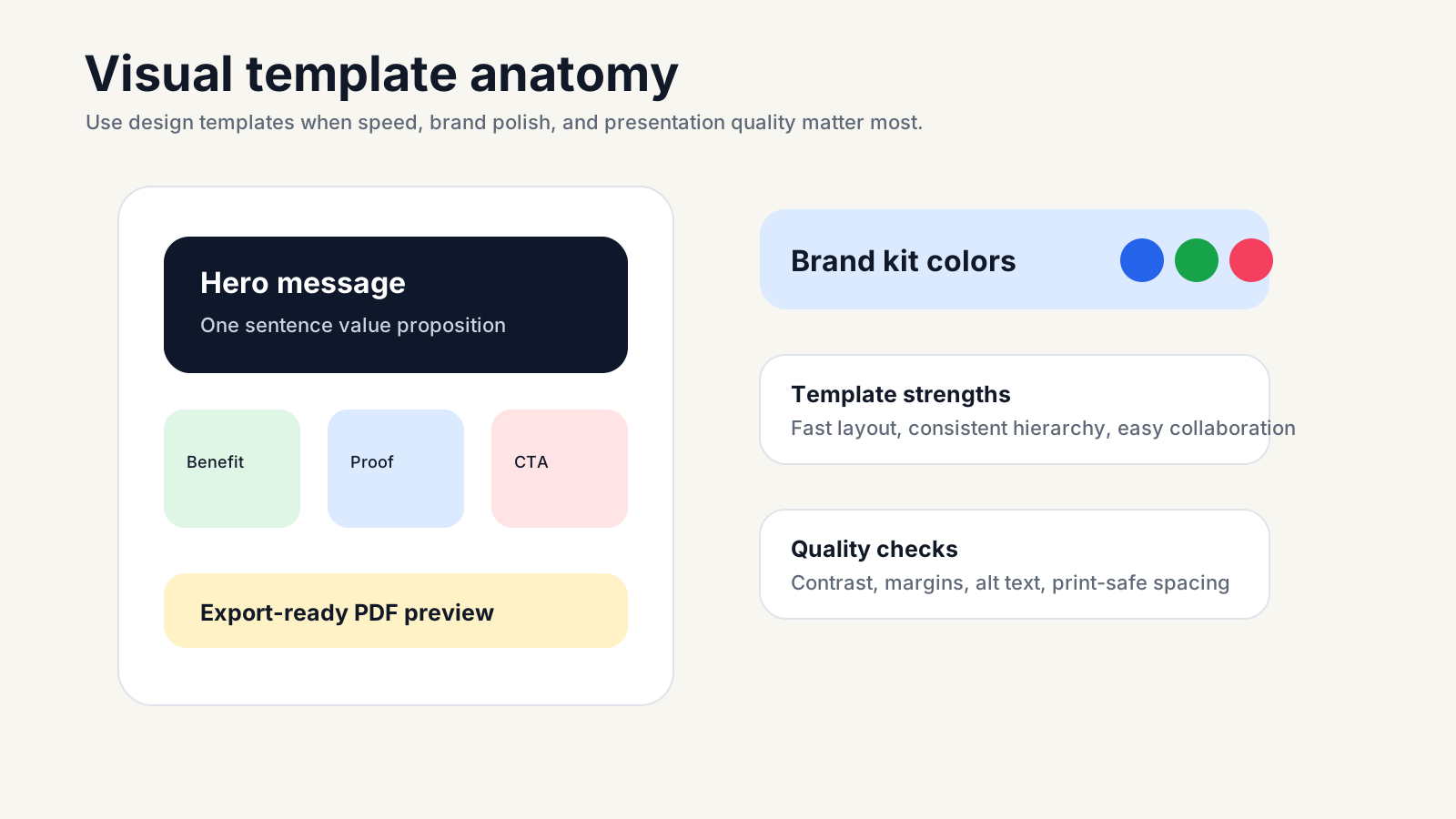
Figma and FigJam are best when visual precision matters more than speed. They give design-driven teams exact control over layout, spacing, reusable components, and export quality. They are favored for advanced one pager design because reusable components, grids, and export controls make multi-version work easier to manage.
Why this one pager example works
For a product launch sheet, each headline, KPI, and benefit block needs to align cleanly and remain easy to update as specs change. Figma’s auto layout and component system let you do just that: create a design one pager where headers, CTAs, and KPI cards are built as reusable components. This ensures every new version stays visually consistent, even as content or branding changes. Plus, FigJam’s collaborative whiteboard tools are perfect for early brainstorming or mapping out your one pager layouts before you refine the final design in Figma.
With Figma, you can apply a precise 12-column grid, set font sizes (e.g., 32–40px for headlines, 16–18px for body), and use shared styles for color and typography. This not only guarantees brand consistency but also streamlines the process for teams working across multiple deliverables. And when it’s time to hand off or share, Figma’s export tools let you save your one pager as a high-resolution PDF, PNG, or SVG—ready for both digital and print use.
Pros and cons
Pros
• Auto layout: Effortlessly maintain alignment and spacing as content changes.
• Shared components: Build once, reuse everywhere—headers, CTAs, metrics cards, and more.
• Precise spacing and grids: Achieve pixel-perfect alignment for professional results.
• Real-time collaboration: Designers, marketers, and execs can comment, iterate, and approve in one place.
• Flexible export: Output as PDF (test at 300 DPI for print), PNG, SVG, or share a live link.
Cons
• Learning curve: New users may need time to master advanced layout and component features.
• Collaboration expectations: Non-designers may need onboarding for commenting and reviewing.
• Accessibility and print checks: Designers must manually validate color contrast and test typographic scale in exports.
Best use cases
• Sales one sheets: Highlight features, benefits, and a single KPI for quick decision-making.
• Investor briefs: Summarize business model, traction, and financials with annotated visuals.
• Product feature pages: Use annotated screenshots, diagrams, and a 3-up benefits row for clarity.
• Brand system templates: Create a library of one pager design templates for consistent use across teams.
These scenarios benefit most when you need to update or iterate on multiple versions without sacrificing visual consistency or brand standards.
Starter layout
Start with this structure for a reusable one pager design template in Figma:
• 12-column grid: Ensures balanced, modular layout for all content blocks.
• Headline (32–40px): Bold, top-aligned statement of value or offer.
• Body (16–18px): Short, punchy copy in 2–3 columns for easy scanning.
• 3-up benefits row: Use icons or cards to highlight key differentiators.
• Right-rail KPI card: Feature a standout metric, testimonial, or chart for proof.
• Bottom CTA: Clear, visually distinct action button or link.
Use components for header, CTA, and KPI to keep multi-version updates consistent.
Before exporting, always test at 300 DPI for print, ensure text remains vector (not rasterized), and manually verify color contrast ratios for accessibility. Figma’s export panel lets you select the right format and resolution for any use case—digital or print.
By leveraging Figma and FigJam, you create one pager layouts that are as flexible as they are precise—ready for rapid iteration, stakeholder review, and flawless delivery. Up next, we’ll compare all the top tools side by side so you can choose the best fit for your workflow and goals.
Side by Side Comparison of the Top One Pager Tools
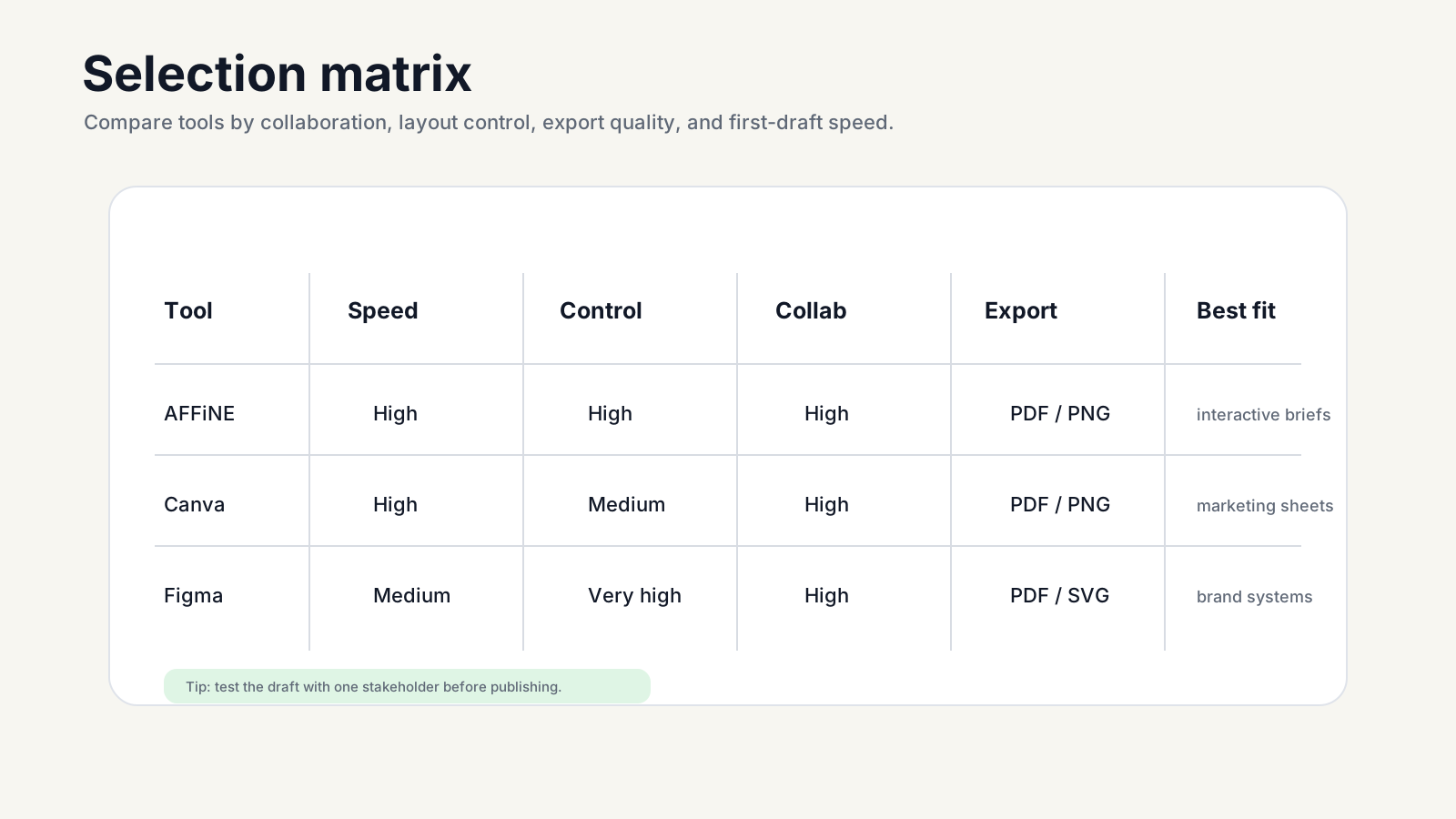
The right tool depends on whether speed, design control, collaboration, or print quality matters most. Below, you’ll find a feature matrix that distills the key strengths, tradeoffs, and best-fit scenarios for each platform discussed in our one pager examples guide. This table is designed to answer the core question: which tool is right for your next project, and why?
Feature comparison at a glance
| Platform | Key Features | Export Options | Collaboration | Learning Curve | Best-Fit Use Cases | Accessibility & Localization |
|---|---|---|---|---|---|---|
| AFFiNE | Hybrid canvas+docs, AI mind mapping, flexible templates, local-first privacy | PDF, PNG, local export | Real-time, secure sharing | Low–Medium (short onboarding) | Investor briefs, product launches, classroom overviews | WCAG contrast, alt text, plain language, multi-language support |
| Canva | Extensive template library, drag & drop, brand kits, quick export | PDF, PNG, share link | Live editing, comments | Low (intuitive for non-designers) | Marketing one sheets, event summaries, educator handouts | Alt text, high-contrast, accessible fonts, multi-language UI |
| Notion | Structured docs, inline databases, toggles, templates | PDF, share link | Real-time editing, comments | Low–Medium (some onboarding for databases) | Company one pagers, internal briefs, product specs | Keyboard navigation, screen reader support, localization options |
| Miro | Infinite canvas, sticky notes, diagrams, live collaboration | PDF (framed export), image | Live editing, comments | Medium (visual thinkers adapt fastest) | Storyboard one pagers, onboarding maps, curriculum snapshots | Frame-based navigation, color contrast, multi-language |
| Google Docs | Clean docs, comment threads, simple tables, easy sharing | PDF, print, share link | Real-time editing, comments | Very Low (universal familiarity) | Quick memos, internal one sheet examples, project summaries | Screen reader, alt text, localization, accessible templates |
| Figma/FigJam | Pixel-precision, reusable components, auto layout, collaborative design | PDF (300 DPI), PNG, SVG, share link | Real-time design, comments | Medium–High (design experience helps) | Brand one pagers, sales sheets, investor decks | Manual contrast check, export validation, multi-language UI |
Editor’s observations
What stands out when reviewing these one page examples is that no single tool is perfect for every scenario. If you’re after rapid ideation and flexible layouts, AFFiNE and Miro shine. Canva is a favorite for visually polished, ready-to-go templates—ideal when you need a business one pager example for marketing or events. Notion and Google Docs excel at quick drafting, collaboration, and maintaining a living document for teams. For pixel-perfect, on-brand deliverables, Figma is unmatched.
You’ll also notice that accessibility and localization are now standard across most platforms, but the depth of support varies. For mission-critical or public-facing documents, always test color contrast, add alt text, and ensure your export matches your intended format. This is especially important when sharing examples of a one pager with diverse audiences.
Choosing the right tool
• Choose visual canvases (AFFiNE, Miro) for diagrams, mind maps, or non-linear flows.
• Choose docs platforms (Notion, Google Docs) for quick drafts, internal briefs, or living documents.
• Choose design tools (Figma) for brand-tight, multi-version business one pager examples that demand precision.
• Choose template libraries (Canva) for fast, visually consistent one sheet examples with minimal setup.
• Accessibility and localization support can be the tie-breakers for public or global projects.
Pick the tool that reduces editing time while preserving hierarchy and print fidelity.
Before you finalize your choice, test your one pager example with a real stakeholder. Share the draft and ask three questions: Is the main value clear? Can you explain it in one sentence? What’s the next step? This feedback loop ensures your one page examples are not just well-designed, but also truly effective in the real world.
What to do next to ship a standout one pager
To make a one-pager that gets read, shared, and acted on, start with a narrow audience and a single next step. Whether your goal is a compelling marketing one pager, a crisp sales one pager, or a summary for internal alignment, you’ll find a proven workflow and checklist below. Use the workflow below to keep the final page clear, persuasive, and ready for real review.
Quick-start workflow
Follow this step-by-step path to go from concept to finished one pager in one focused session:
-
Pick a template: Start with a structure that matches your audience and goal. For speed and flexibility, consider AFFiNE’s free one pager templates—they blend creative canvas layouts with structured docs, and support AI-powered mind mapping for fast ideation.
-
Write your value prop: Summarize your main message in 12–15 clear words. Think: “Our platform boosts your team’s productivity by 40% with automated workflows.”
-
List three benefits: Use short, punchy bullets to highlight the top advantages for your reader.
-
Add one proof metric: Include a single, credible stat or testimonial that builds trust.
-
Place your CTA: Make the next step obvious—“Book a demo,” “Download the guide,” or “Contact sales.”
-
Run a clarity pass: Read your draft aloud. If any section feels confusing or wordy, trim it down.
-
Export and test print: Save as PDF or image, then check spacing, margins, and visuals—especially if you’ll be printing or sharing offline.
Editing and approval checklist
Even the best one pager examples need a final polish. Before you share, run through this quick review:
• Are all sentences under ~20 words for easy scanning?
• Is jargon trimmed and language kept plain?
• Have you added alt text to every visual (for accessibility)?
• Is color contrast strong enough for all readers?
• Are margins and spacing generous, with no elements crowding the edge?
• Did you label the version or date for tracking feedback?
This checklist ensures your finished one pager is not only visually sharp but also accessible and easy to understand—core principles in what is a 1 pager designed for real impact.
Final pick and next steps
Choosing the right tool and template is half the battle. If you’re aiming for fast iteration, strong privacy, and a blend of creative and structured editing, start with AFFiNE’s free one pager templates. Their local-first approach keeps drafts secure, while AI-powered mind mapping helps you brainstorm and organize content quickly—perfect for adapting templates to investor, sales, or classroom use cases.
Want to experiment? Try A/B testing your headline or CTA with different audiences. Small tweaks can make a big difference in response rates. And remember, a useful 1 pager is a living document. Don’t be afraid to iterate: gather feedback, make quick updates, and track which versions perform best for your business or team.
Ship the first version today; iterate with real feedback tomorrow.
The fastest way to learn is by doing: pick a template, replace the sample content with your audience-specific message, and ask one real stakeholder whether the next step is obvious.
Frequently Asked Questions about One Pager Examples
1. How to create a one-pager?
To create a one-pager, draft a single-page document with a purpose-first headline, 1–3 value points, one proof metric, and a decisive call to action. Start from a template in AFFiNE, Canva, or Google Docs to skip layout work, keep copy concise, and test the design in both digital and print formats before sharing.
2. What makes a good one pager?
A good one-pager is concise, visually clear, and focused on a single goal. It needs a purpose-driven headline, brief value statements, at least one proof point such as a statistic or testimonial, simple visuals, a decisive call to action, and accessibility basics like high-contrast color and readable fonts.
3. Can AI help create a one pager?
Yes — AI-powered tools like AFFiNE can streamline one-pager creation through AI mind mapping, auto-layout, and content suggestions. These features speed up drafting and refinement for beginners and experienced designers alike, cutting first-draft time from hours to under fifteen minutes.
4. What does a one pager look like?
A one-pager is a single-page document organized with a clear headline, value pillars, a standout metric, a simple visual, and a call to action. The best one-pagers are skimmable and visually balanced — they use grids or columns and present information in a top-to-bottom, left-to-right reading flow.
5. Which platform is best for making a one pager?
AFFiNE is the best free platform for interactive one-pagers with privacy. Canva leads on design-forward templates, Notion on structured collaborative docs, Miro on visual whiteboard mapping, Figma on pixel-perfect design, and Google Docs on fast drafts. Pick by primary use case, not by feature list.
Ready to Build Your One Pager?
Start with a template, write one clear value proposition, add one proof point, and export a version you can share today.
👉 Get started with AFFiNE for free